How to share files on Google Drive?
 Google is an online cloud-storage service which allows you to store several files (documents, photos, music and many more). This way you can save your computer’s hard disk space and access the files on Google drive from any device on the web. One striking feature of Google Drive is that you can share your files on Drive with others and even allow them to edit or comment on it. You can directly share the files online which is lot easier than sending email attachments. And if you make changes to that file, anyone you have shared the file with can see the changes as it happens. We will guide you on how to share files on Google Drive with individuals or groups and how to choose what other can do with a file.
Follow these simple steps to know how to share files on Google Drive:
- Click on web browser’s icon on your computer to open it.
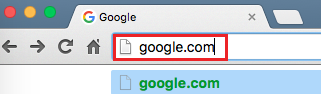
- Type Google Drive’s domain: drive.google.com in the address bar and hit enter.


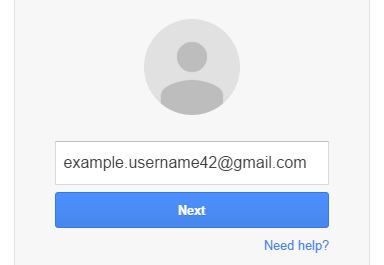
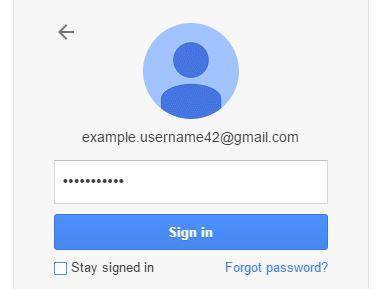
- Enter your Google account credentials (username and password) in the respective fields.
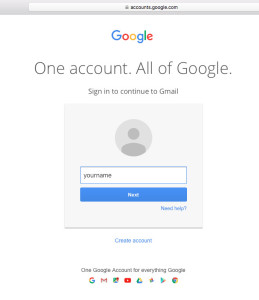
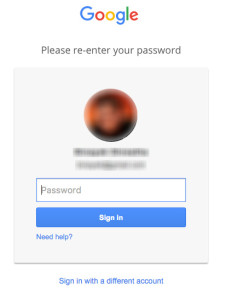
- Click on the blue “Sign in” button below and you’ll be taken to the “My Drive” section of your Google account.
- After you’ve opened Google Drive, open the file or folder you want to share.

- If you’ve opened a file to share: Click the blue “Share” button at the top right corner of the page.

-
If you’ve opened a folder to share: Click on the Share icon at the top right.
- While to share your file list in Google Drive: Select the name of a file or folder you want to share and click the Share icon in the top right.
- Now, in the sharing box, type the mailing addresses of the people or Google groups you want to share with, in the “People” field. You can also search for contact by typing them in the field.
- Choose what kind of access you’d like to give these people you are sharing your file with by clicking the dropdown arrow at the right of the “People” field.


- If you choose “Can edit”, the file or folder can be edited by the following user and shared with others.
- If you choose “Can comment”, they can view and comment on the file but cannot edit it. While you can’t allow to comment on the folders.
- If you choose “Can view”, users can only view the file or comment but cannot edit on add comments to it.

- Finally, click on blue “Done” button to complete sharing files on Google drive. The following individual or group will get an email to let them know you’ve shared the particular file or folder with them.This is ‘How to share files on Google Drive?’ We hope this page on ‘How to share files on Google Drive?’ was useful and we would like you to also share with your friends and family.
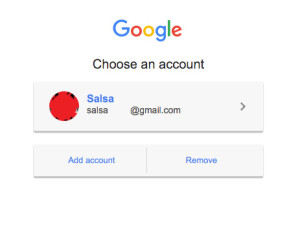
 If somebody is already signed in, click the image/avatar in circle at the top-right corner and click the Sign out button. Click the Sign in button, also on the top-right corner. Then, click the Add account button.
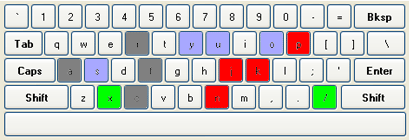 There are some basic keyboard shortcuts that are automatically enabled in your inbox, and others that need to be enabled manually. And, to be able to use the shortcut keys, you’ll need a Standard 101/102-Key or a Natural PS/2 Keyboard.