Couldn’t Find Your Google Account? 7 Fixes for the Gmail Error

Seeing the message “Couldn’t find your Google Account” can feel alarming, but it usually means Google does not recognize the email address or phone number you typed. In most cases the cause is a typo, a different address than the one you remember, or an account that was removed long ago. Work through these seven checks in order to find your account or move on to a new one.

1. Check the Spelling of Your Email Address

accounts.google.com1Check thespellingLook for typosSign injohn.smth@gmail.comCouldn’t find your Google AccountForgot email?Next
Step 1: compare every letter of the address you typed.

Typos are the most common cause. Look closely at the letters, dots and numbers in your address. Gmail ignores dots, but a missing or extra letter will fail. Type the full address, ending with @gmail.com, and avoid trailing spaces. Retype it slowly instead of pasting it, then try again.

2. Try Your Phone Number Instead

2Use your phone numberInclude your country codeSign inEmail or phone+1 555 010 0123Forgot email?Next
Step 2: try the phone number linked to your account.

If your account has a phone number linked to it, enter that number instead of the email address on the sign-in page. Use the full number with your country code. This can help when you cannot remember the exact address you signed up with.

3. Search Your Other Inboxes

your other email inbox3Search your otherinboxesLook for mailfrom GoogleGoogle AccountGoogleSecurity alert for your linked accountGoogleWelcome to your new Google AccountGoogleYour account recovery settings
Step 3: search other mailboxes for messages sent by Google.

If you are unsure of the address, search your other email accounts for messages from Google, such as a welcome message or a security alert. Try searching for “Google Account” or “security alert”. Also check the account list in any phone or browser where you were signed in before, since the address may still be saved there.

4. Use the Forgot Email Option

4Tap Forgot emailUse your recovery detailsFind your emailEnter your recovery detailsPhone or recovery emailFirst and last nameNext
Step 4: enter your recovery phone or email and your name.

On the sign-in page, choose Forgot email. Enter the recovery phone number or recovery email linked to your account, then the first and last name on the account. Google may send a code to confirm it is you, and then show the matching address so you can sign in.

5. Check Whether the Account Was Deleted

accounts.google.com5Try accountrecoveryIf it was deletedor inactiveAccount recoveryAnswer what you canLast password you rememberTry another wayNext
Step 5: try recovery from a device and place you normally use.

Google removes accounts that their owners deleted, and accounts that stay inactive for a long period, generally about two years, may be deleted too. If yours was removed recently, you may still be able to restore it through Google’s account recovery page, but that option is limited in time. Try recovery from a device and location you have used before, and answer as many questions as you can.

6. Try Another Browser or Device

accounts.google.com6Try anotherbrowserOr a private windowNew tabNew windowNew Incognito windowHistorySettings
Step 6: open a private window or switch to another browser.

Browser data or extensions can sometimes cause odd errors. Open a private or Incognito window, clear your cookies, or try a different browser such as Chrome, Edge or Firefox. Test on a phone as well. If another device signs in, the problem was stored data, not your account.

7. Create a New Account if Recovery Fails

7Create a new accountOnly if recovery failsCreate accountEnter your nameFirst nameLast nameNext
Step 7: start fresh with a new account if the old one is gone.

If recovery fails because the account no longer exists, create a new one. Go to the Google account creation page, enter your name, choose a new address, and verify with a phone number. Then update your sign-in details on important websites, including banking and shopping accounts. Add a recovery phone number and email right away.

Need More Help?

If Google finds your account but you still cannot get in, see our guides on Gmail password reset and Gmail login not working. Never share verification codes with anyone, even if they claim to be from Google support.


Reset Google Password | RIGHT NOW

Need to reset Google password? Because someone might have known your password? Or, you just want to keep changing your Gmail password time to time for safety. Or you’ve forgotten your password? Whatever the reason, here in this article you’ll learn to reset Google password whether you remember it or not.

Reset Google password for security reasons:

  1. First of all, follow the link: ‘www.gmail.com‘ or mail.google.comreset google password
  2. Fill in your Gmail login credentials and sign in to your account.
    reset google password
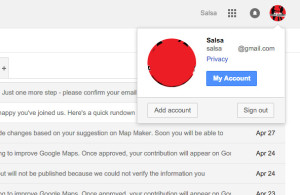
  3. Click on the profile image button located near the top-right corner of your screen, which looks like a small cog.reset google password
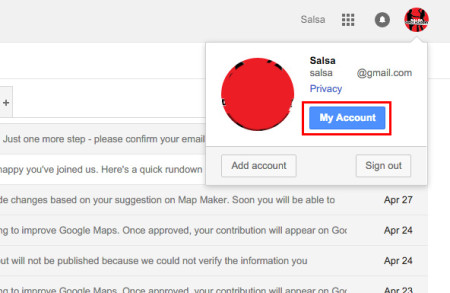
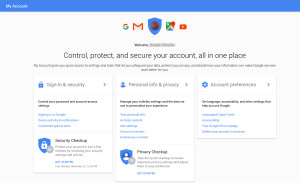
  4. On the fourth category from the top of the drop-down menu, you’ll see My Account option.reset google passwordreset google password
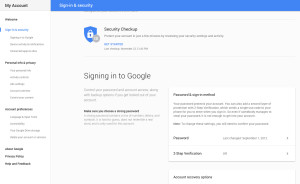
  5. Click the Sign In & Security. That is the fourth item from the left of the top of the Settings tool bar.reset google password
  6. Click on the, ‘Password and Sign in method’ link. Sign is again required for security propose with current password.
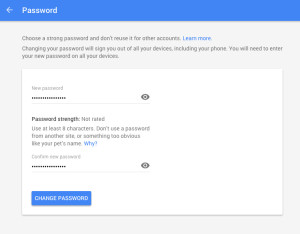
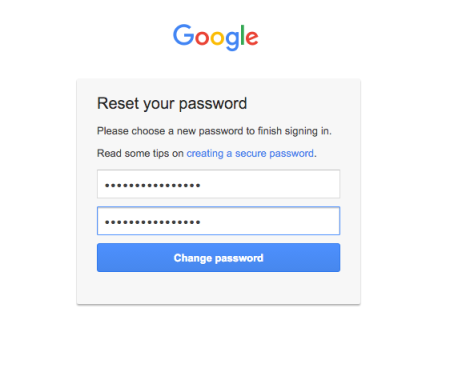
  7. Enter new password and re enter again below.reset google password
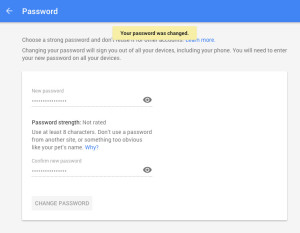
  8. Enter a new password that you’d want to set for your Google account. You will see the strength of the password to the left of the new password. Type new password with high strength for better security.reset google password
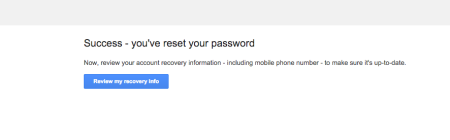
  9. Lastly, click the blue Change password button.

Reset Google password if you’ve forgotten your Gmail password:

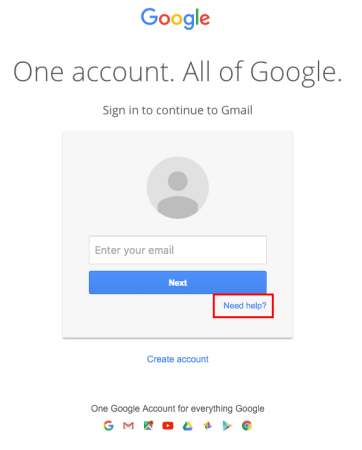
First of all, go to www.gmail.com in your web browser.

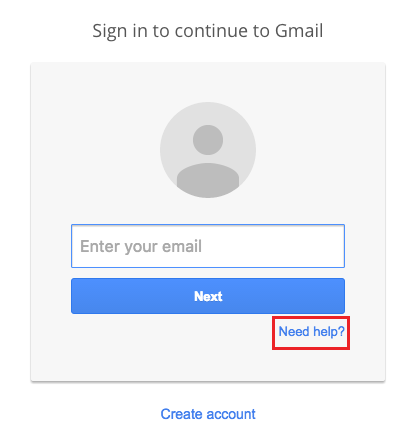
Click on the Need help? Link below the sign-in button.reset google password

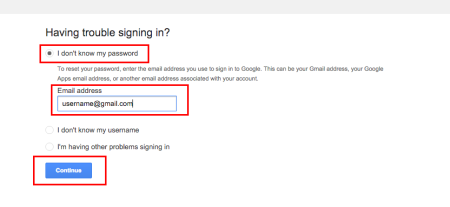
  1. Click I don’t know my password.
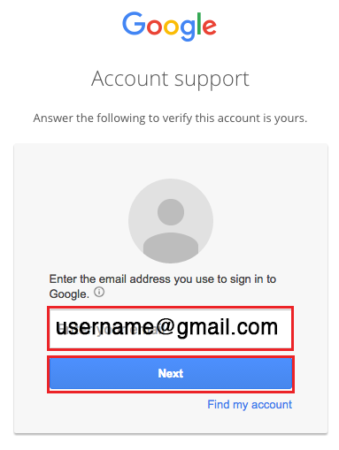
  2. Type in your Gmail address in the provided field and click Continue.reset google password
  3. Google will provide you some characters on-screen. Type them and click Continue.
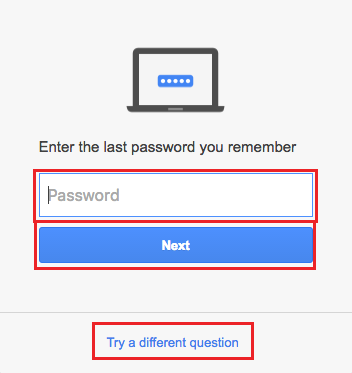
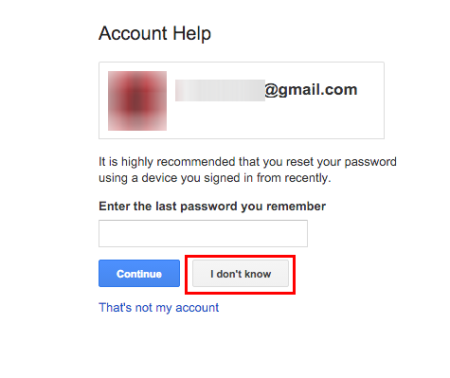
  4. Type in the “last password you recall” for your Gmail account. This will ease your password recovery process. Else, click I don’t know and follow the rest of the procedure.reset google password
  5. Choose ‘Send notification’ to Android phone if the device is linked to Google account. This option will send a “password reset information” to Android phone. Use the notification to reset Google password.
    No Android device linked to your Google account. Click ‘I can’t access my device’ button, and follow the rest of the procedure.
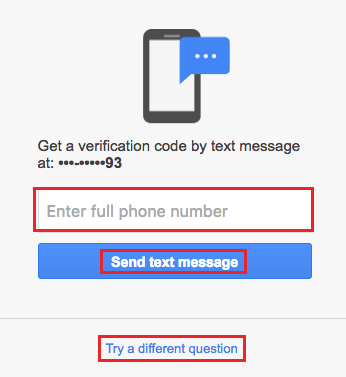
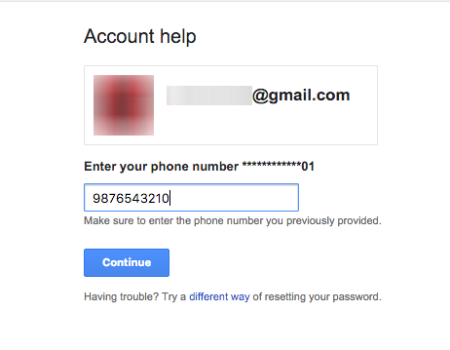
  6. For the second option in step 7. First priority for your password recovery will be your phone. Only if a phone number is linked. For this, select a method (via text or automated call) to receive a verification code. Else, click I can’t access my phone.reset google password
  7. Your alternate email address or your recovery email linked to your Google account is your next alternative to recover Google password. Click on ‘Continue’ and instructions to recover Google password will be sent to email.
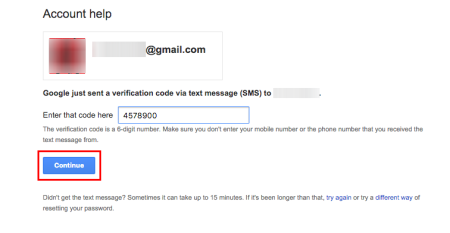
  8. The, for mobile phone option, enter the verification code you have received.
    For recovery email option, click the password reset link in the email.
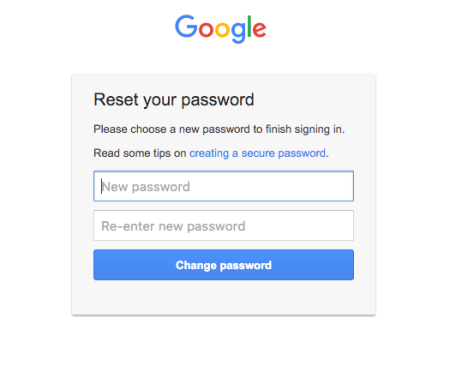
  9. Now, create a new password for your Google account.reset google password
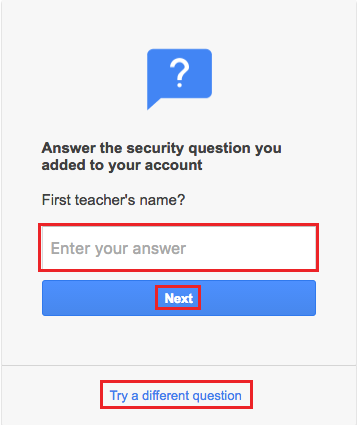
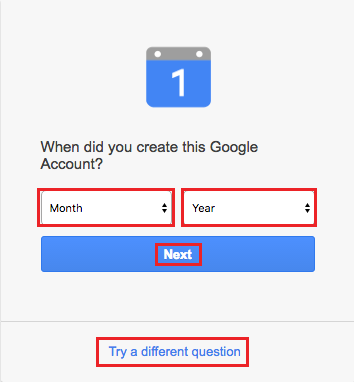
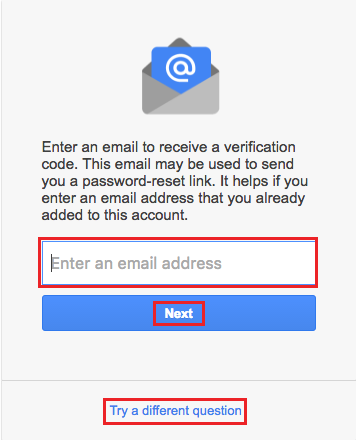
  10. Finally, click ‘Reset Password’ button to save the changes.gmail account recovery Screen Shot 2016-02-28 at 10.57.54 PMScreen Shot 2016-02-28 at 10.58.07 PM
    reset google password