Gmail Login Not Working on Android? 7 Easy Fixes

When Gmail will not sign in on your Android phone, the cause is usually a connection problem, an outdated app, or stored app data that has gone stale. These problems are easy to fix, and your emails are not at risk because they live on Google’s servers. Follow the seven fixes below in order, from quickest to most thorough.

1. Check Your Internet Connection

1Allow mobile dataSettings, Apps, then GmailMobile data and Wi-FiBackgrounddataUnrestricteddata usage
Step 1: allow Gmail to use mobile data in the background.

Open Chrome and load a website to confirm you are online. Turn Airplane Mode off, then switch between Wi-Fi and mobile data. If Gmail works only on Wi-Fi, open Settings, then Apps, then Gmail, and make sure mobile data and background data are allowed. Turn off Data Saver while you sign in.

2. Force Stop Gmail and Restart Your Phone

2Force stop, then restartSettings, Apps, Gmail, Force stopApp infoGmailOpenUninstallForce stop
Step 2: force stop the app, then restart your phone.

Open Settings, tap Apps, choose Gmail, and tap Force stop. Then restart your phone by holding the power button and choosing Restart. A fresh start clears temporary glitches that can block sign-in. Open Gmail again and try your login.

3. Update Gmail, Google Play Services and Android

3Install all updatesPlay Store, then Manage appsManage apps and deviceUpdates availableGmailBug fixesUpdateGoogle PlayservicesUpdate
Step 3: update Gmail and Google Play services.

Open the Google Play Store, tap your profile picture, then Manage apps and device, and install updates for Gmail. Also update Google Play services if it is listed. Then open Settings, go to System or About phone, and check for a software update. Outdated versions are a common cause of login errors.

4. Set Your Date and Time to Automatic

4Fix date and timeTurn on the automatic optionsDate and timeSet timeautomaticallySet time zoneautomatically
Step 4: let your phone set the time automatically.

Wrong time settings can make Google reject your sign-in or verification code. Open Settings, search for Date and time, and turn on Set time automatically and Set time zone automatically. Restart Gmail and sign in again.

5. Clear the Gmail App Cache

5Clear the app cacheSettings, Apps, Gmail, StorageStorageApp size120 MBUser data48 MBCache35 MBClear storageClear cache
Step 5: tap Clear cache, not Clear storage.

Stored app data can become corrupted. Go to Settings, then Apps, then Gmail, then Storage, and tap Clear cache. This does not delete your emails or your account. Reopen Gmail and try again. Clear storage is a stronger option that signs you out of the app, so use it only if the problem continues.

6. Check Your Password in a Browser

6Test your passwordSign in with Chrome, reset if neededaccounts.google.comSign inForgot password?Next
Step 6: confirm your password outside the app.

Visit accounts.google.com in Chrome and sign in. If it works there, the problem is in the app. If it fails, tap Forgot password and reset it using your recovery phone or email. Approve any verification prompt sent to another device where you are signed in. Then return to the Gmail app and use your new password.

7. Remove and Re-Add Your Google Account

7Remove and re-addSettings, Passwords and accountsPasswords and accountsYGoogleyou@gmail.comRemove accountAdd account
Step 7: remove the account, then add it again.

Open Settings, tap Passwords and accounts (or Accounts), choose your Google account, and select Remove account. Your emails stay in your Google account online. Restart the phone, open Gmail, tap Add another account, choose Google, and sign in again. Menu names vary by phone brand and Android version.

Still Locked Out?

If nothing works, wait a few hours before trying again, because too many attempts can temporarily limit sign-ins. Try signing in from a computer you have used before, and use Google’s account recovery page if needed. Keep your recovery phone number and email up to date so future problems are quick to fix.

Related guides: Gmail Login Not Working? 7 Quick Fixes, Gmail Login Not Working on iPhone and Gmail Password Reset.

Google Open – RIGHT NOW

Google Open! In this page, we will help you open your Google on your any system or devices you are using. Below you’ll find the details on how to do Google open? We have explained with description on how to as well as images to get your Google opened.

Google Open – Desktop Users for Window and Mac

  1. To open Google in your desktop computer – doesn’t matter which system its running Windows or Mac.
  2. Open any web-browsers you have installed in your system like Safari, Mozilla Firefox, Opera or even Google Chrome.
  3. Google Chrome is the web-browser by Google Company itself. When you open / run the Google Chrome application it is automatically connected with Google and it opens the Google when you open the application.
  4. To do Google open on any other web browsers – one must have to open the application like Safari, Mozilla Firefox, Opera and type in google.com on the address bar and press enter or return.
    google open

Google Open – Android devices (Phone or Tabs)

  1. All the Android devices have preinstalled Google application.
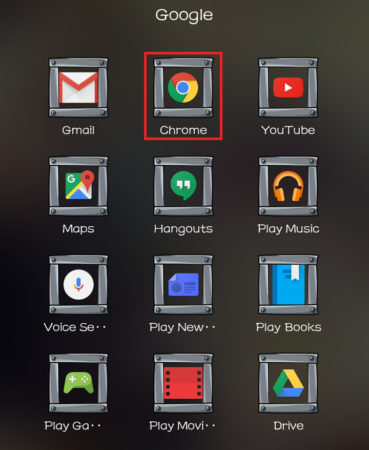
  2. Tap on your menu and look for Google App Folder.
  3. Tap on the Google Chrome to open Google.google open

Google Open – IOS devices (iPhone, iPad & iPod)

            You can do two ways to do Google open on IOS devices. Via install Google app or via Safari web browser on your phone.

Install Google App

  • On IOS devices like iPhone, iPad and iPods, Google app is not pre installed.
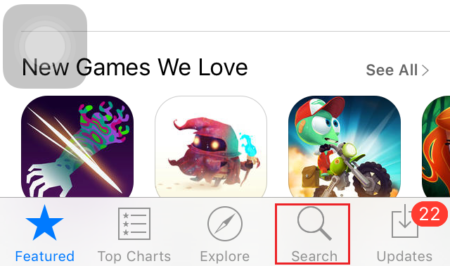
  • To install Google app on your IOS device you’ll first have to go to your App Store.google open
  • Now, tap on the Search Icon.
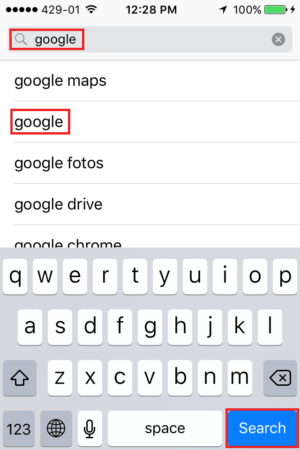
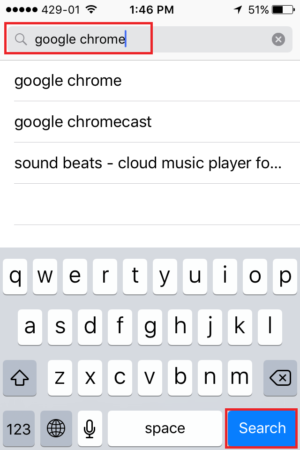
  • Type-in Google on the search bar and tap on Search below.img_2270 img_2271
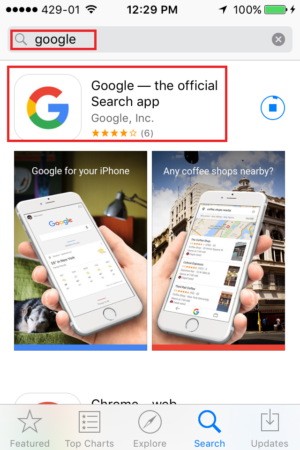
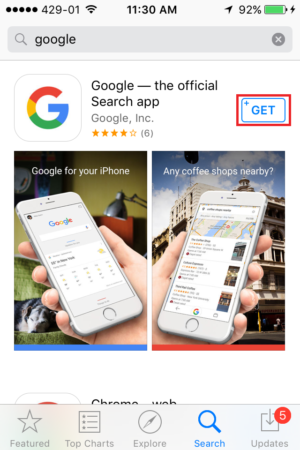
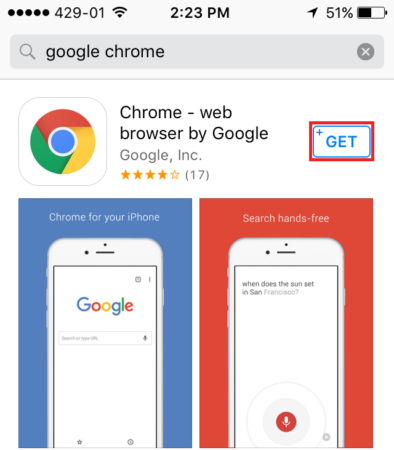
  • Tap on GET to install the Google App.google open
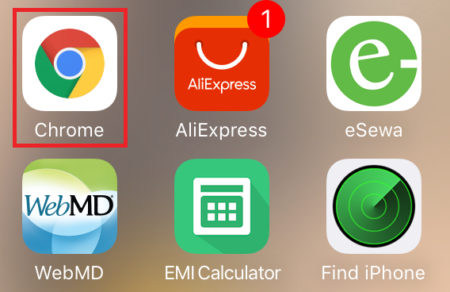
  • Once installed go back to your home screen and look for Google app icon and tap on it to open Google.

Google open via safari app on IOS devices.

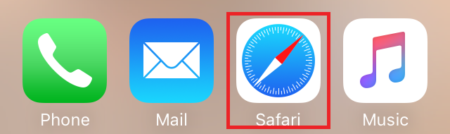
  • Look for Safari icon on your device and tap on it to open.google opengoogle open
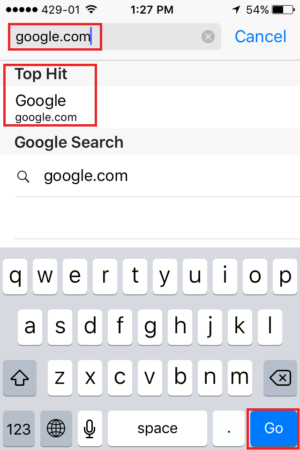
  • Once open on the address bar type in Google.com to open Google.google open

Open Google – Right NOW!

Open Google – Right NOW! Here we have for you on how one can open Google on its any devices. Devices like computer, smart phones and also Tabs. Below we have for you on how you can open Google on every device.

Open Google – In Computer (MAC or PC)

Open Google – Android Smart Phones or Tabs

  • All the android phone or tabs already have Google applications like Google Chrome, Google Hangouts, Google Search, YouTube, Gmail, Google Maps, Play Music, Voice Search, Play Books, Google Drive and many more.open google
  • To get Google, you can tap on Google Chrome icon, just like that you’ll have your Google open for you.open google

Open Google – iPhone, iPod, iPad, iPad Pro or any smart devices with iOS platform.

  • Tap on the app called ‘Safari’open google
  • On the top the search bar, where you will see ‘Search or enter website name’ you’ll have to type-in the address google.com and tap on ‘Go’ or just tap on the ‘Top Hits’open google
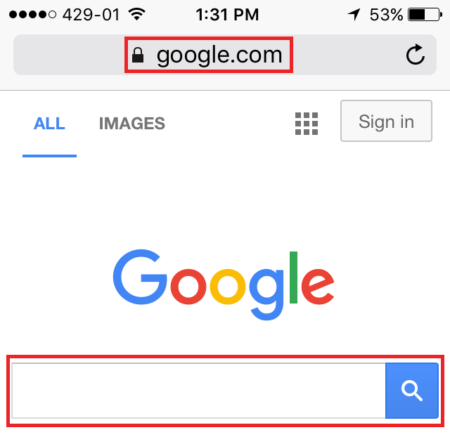
  • Next thing that load would be the main page of Google.open google

How to install Google app in an iOS platform devices?

  • Else you can also download an app to open Google directly. For that you’ll have to go to App Store.open google
  • Down on the search glass icon tap on it.open google
  • Type in Google chrome and tap on ‘Search’open google
  • Tap on ‘Get’ to install the Google Chrome.open google
  • Once installed tap to open the Google Chrome from your home screen.open google
  • This is how you use Google directly on any of the iPhone, iPad, iPad Pro.
  • In the middle of Google Chrome app that you have just opened. You’ll see ‘Search or type URL’. Now you can type in anything you want to search. ENJOYopen google