Gmail Password Reset: How to Recover Your Account in 7 Steps

Forgetting your Gmail password happens to everyone. Google lets you reset it yourself, usually in a few minutes, as long as you can show the account is yours. This guide walks you through a password reset step by step, on a computer or on your phone. Keep your phone nearby, because you will probably need it to receive a verification code.

1. Open the Sign-In Page

accounts.google.com1Open the sign-inpageUse any browserSign inUse your accountEmail or phoneForgot email?Next
Step 1: enter your email address on the sign-in page.

Open your browser and go to accounts.google.com. Type your full Gmail address and click Next. Check the spelling carefully, since a typo here sends the request to the wrong account. Using a device and network you often use also gives Google more confidence that it is really you.

2. Tap Forgot Password

2Tap Forgot passwordOn the password screenWelcomeyou@gmail.comForgot password?Next
Step 2: choose Forgot password instead of guessing again.

On the password screen, choose Forgot password. Avoid guessing several times first, because repeated wrong attempts can slow you down. Google then starts the recovery process for your account.

3. Enter an Old Password or Try Another Way

accounts.google.com3Try another wayif stuckOld passwords countAccount recoveryEnter the last password you rememberLast passwordTry another wayNext
Step 3: enter an old password or choose Try another way.

Google may ask for a password you used before. Enter the most recent one you remember, even if it is old. If you cannot recall any, choose Try another way. This shows the other verification options available for your account.

4. Choose How to Verify It’s You

4Choose how to verifyText message or emailGet a codeVerify it’s youText messageto ••• •• 42Recovery emailto r•••@mail.comSend
Step 4: pick the option you can reach right now.

Google shows the options that match your account. These can include a prompt on a phone where you are signed in, a text message to your recovery number, or a code sent to your recovery email. Choose the one you can reach right now. If a prompt appears on another device, tap Yes, it’s me.

5. Enter the Verification Code

accounts.google.com5Enter the code6 digits from yourphone or emailEnter the codeWe sent a code to your phone482916Resend codeNext
Step 5: type the six-digit code and click Next.

Check your messages or inbox for a six-digit code, type it into the boxes, and click Next. Codes expire quickly, so use it right away. If nothing arrives after a minute or two, go back and request a new code, and check your spam folder if it was sent by email.

6. Create a New Password

6Create a new passwordLong, unique and hard to guessNew passwordStrong passwordConfirm passwordSave
Step 6: enter the new password twice and save it.

Type a new password, then enter it again to confirm. Choose at least twelve characters and mix words, numbers and symbols. Avoid birthdays, names, and any password you use on other sites. A password manager can create and store a strong one for you. Click Save password to finish.

7. Sign In and Secure Your Account

myaccount.google.com7Turn on 2-StepVerificationThen check recoveryphone and emailSecurity2-Step VerificationRecovery phoneAddedRecovery emailAdded
Step 7: turn on 2-Step Verification and confirm your recovery details.

Sign in with your new password. You may need to sign in again on your other devices. Next, open your Google Account security page, turn on 2-Step Verification, and check that your recovery phone and email are current. This makes future resets faster and protects your account from others.

Can’t Recover Your Account?

If Google cannot verify you, try again from a device and location you have used before, and answer the questions as accurately as you can. Wait a day between attempts if you get blocked. Never share verification codes with anyone, even if they claim to be from Google support. If you also see sign-in errors afterward, read our guide on Gmail login not working.


Reset Google Password | RIGHT NOW

Need to reset Google password? Because someone might have known your password? Or, you just want to keep changing your Gmail password time to time for safety. Or you’ve forgotten your password? Whatever the reason, here in this article you’ll learn to reset Google password whether you remember it or not.

Reset Google password for security reasons:

  1. First of all, follow the link: ‘www.gmail.com‘ or mail.google.comreset google password
  2. Fill in your Gmail login credentials and sign in to your account.
    reset google password
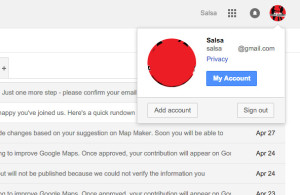
  3. Click on the profile image button located near the top-right corner of your screen, which looks like a small cog.reset google password
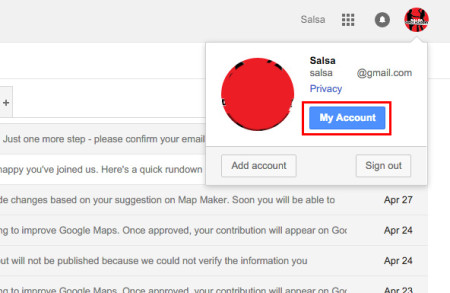
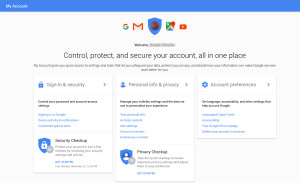
  4. On the fourth category from the top of the drop-down menu, you’ll see My Account option.reset google passwordreset google password
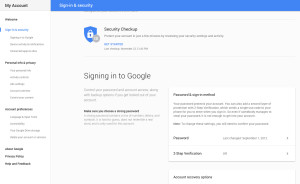
  5. Click the Sign In & Security. That is the fourth item from the left of the top of the Settings tool bar.reset google password
  6. Click on the, ‘Password and Sign in method’ link. Sign is again required for security propose with current password.
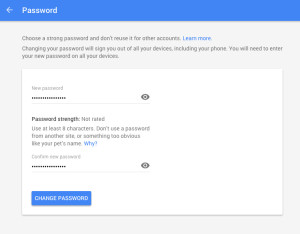
  7. Enter new password and re enter again below.reset google password
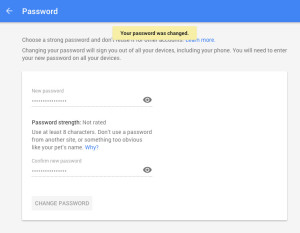
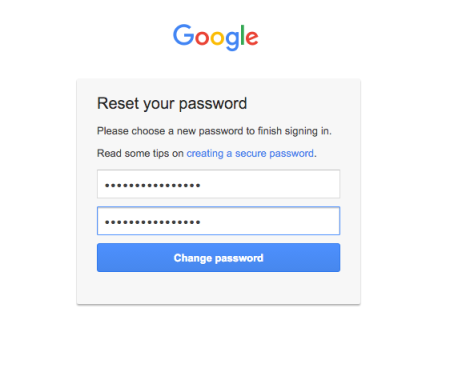
  8. Enter a new password that you’d want to set for your Google account. You will see the strength of the password to the left of the new password. Type new password with high strength for better security.reset google password
  9. Lastly, click the blue Change password button.

Reset Google password if you’ve forgotten your Gmail password:

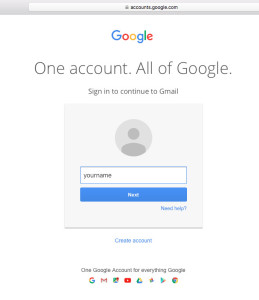
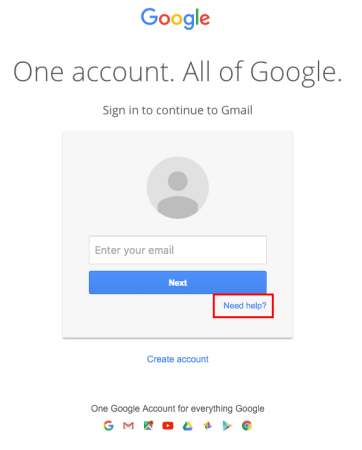
First of all, go to www.gmail.com in your web browser.

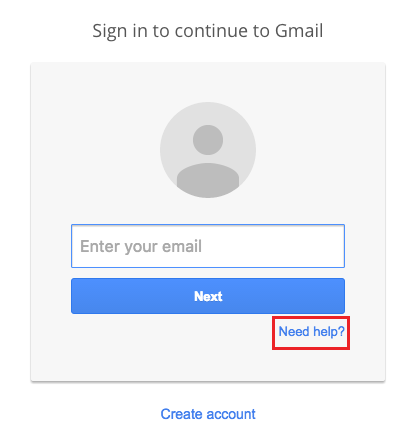
Click on the Need help? Link below the sign-in button.reset google password

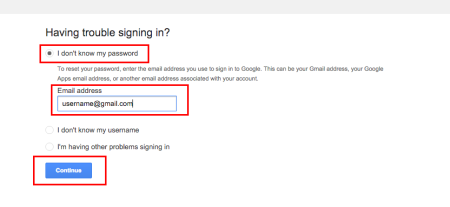
  1. Click I don’t know my password.
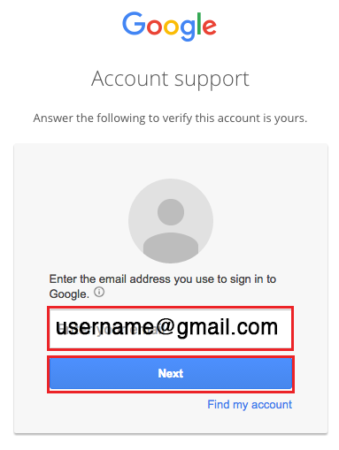
  2. Type in your Gmail address in the provided field and click Continue.reset google password
  3. Google will provide you some characters on-screen. Type them and click Continue.
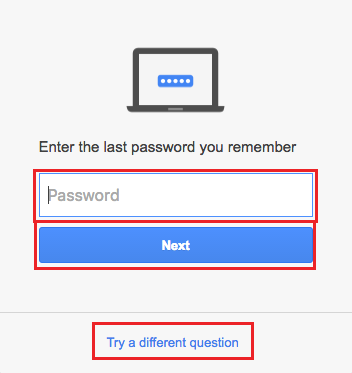
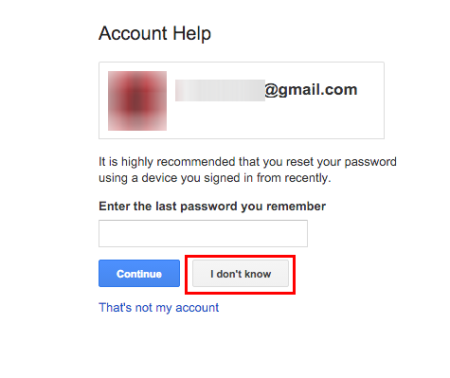
  4. Type in the “last password you recall” for your Gmail account. This will ease your password recovery process. Else, click I don’t know and follow the rest of the procedure.reset google password
  5. Choose ‘Send notification’ to Android phone if the device is linked to Google account. This option will send a “password reset information” to Android phone. Use the notification to reset Google password.
    No Android device linked to your Google account. Click ‘I can’t access my device’ button, and follow the rest of the procedure.
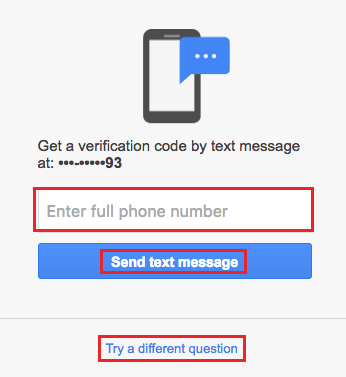
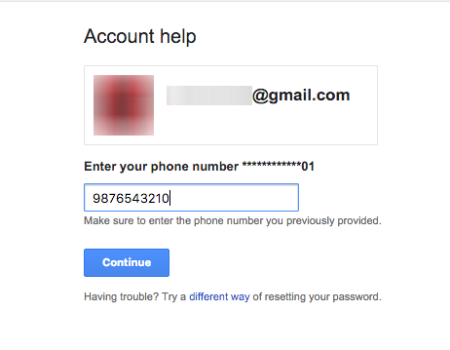
  6. For the second option in step 7. First priority for your password recovery will be your phone. Only if a phone number is linked. For this, select a method (via text or automated call) to receive a verification code. Else, click I can’t access my phone.reset google password
  7. Your alternate email address or your recovery email linked to your Google account is your next alternative to recover Google password. Click on ‘Continue’ and instructions to recover Google password will be sent to email.
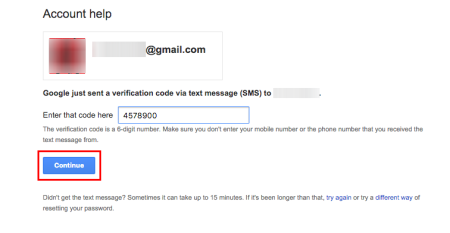
  8. The, for mobile phone option, enter the verification code you have received.
    For recovery email option, click the password reset link in the email.
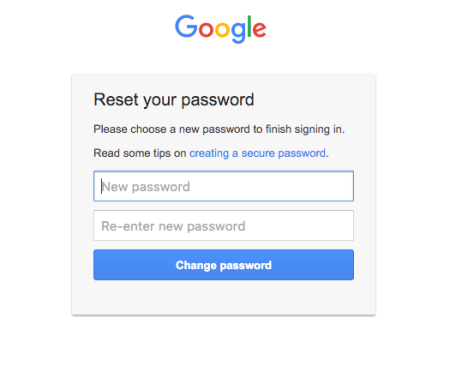
  9. Now, create a new password for your Google account.reset google password
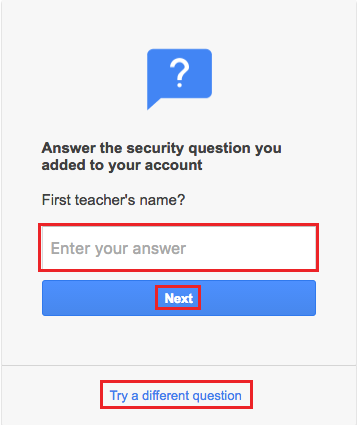
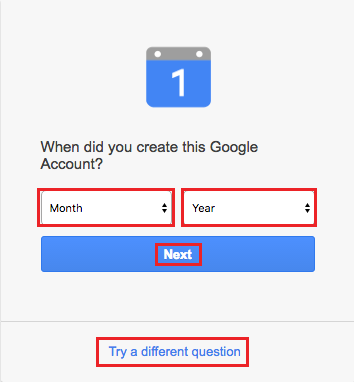
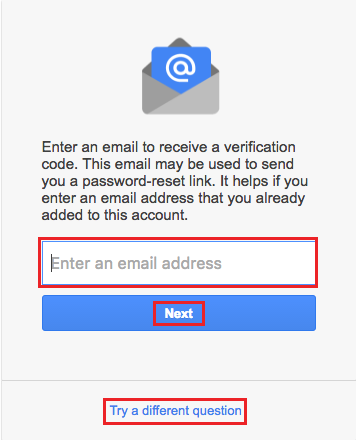
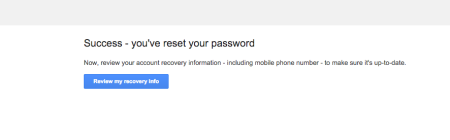
  10. Finally, click ‘Reset Password’ button to save the changes.gmail account recovery Screen Shot 2016-02-28 at 10.57.54 PMScreen Shot 2016-02-28 at 10.58.07 PM
    reset google password